How to Change Your Pace Goal
Your pace goal is the target 500m split that drives everything on your dashboard — the color-coded zones, the goal line on your charts, and even your AI coach's advice. Here's how to change it and what happens when you do.
Where to find the pace goal selector
At the top of your dashboard, a dropdown displays your current goal (for example, 2:00). Click it to open the full list of available goals, ranging from 1:25 to 2:30 per 500m in five-second steps.
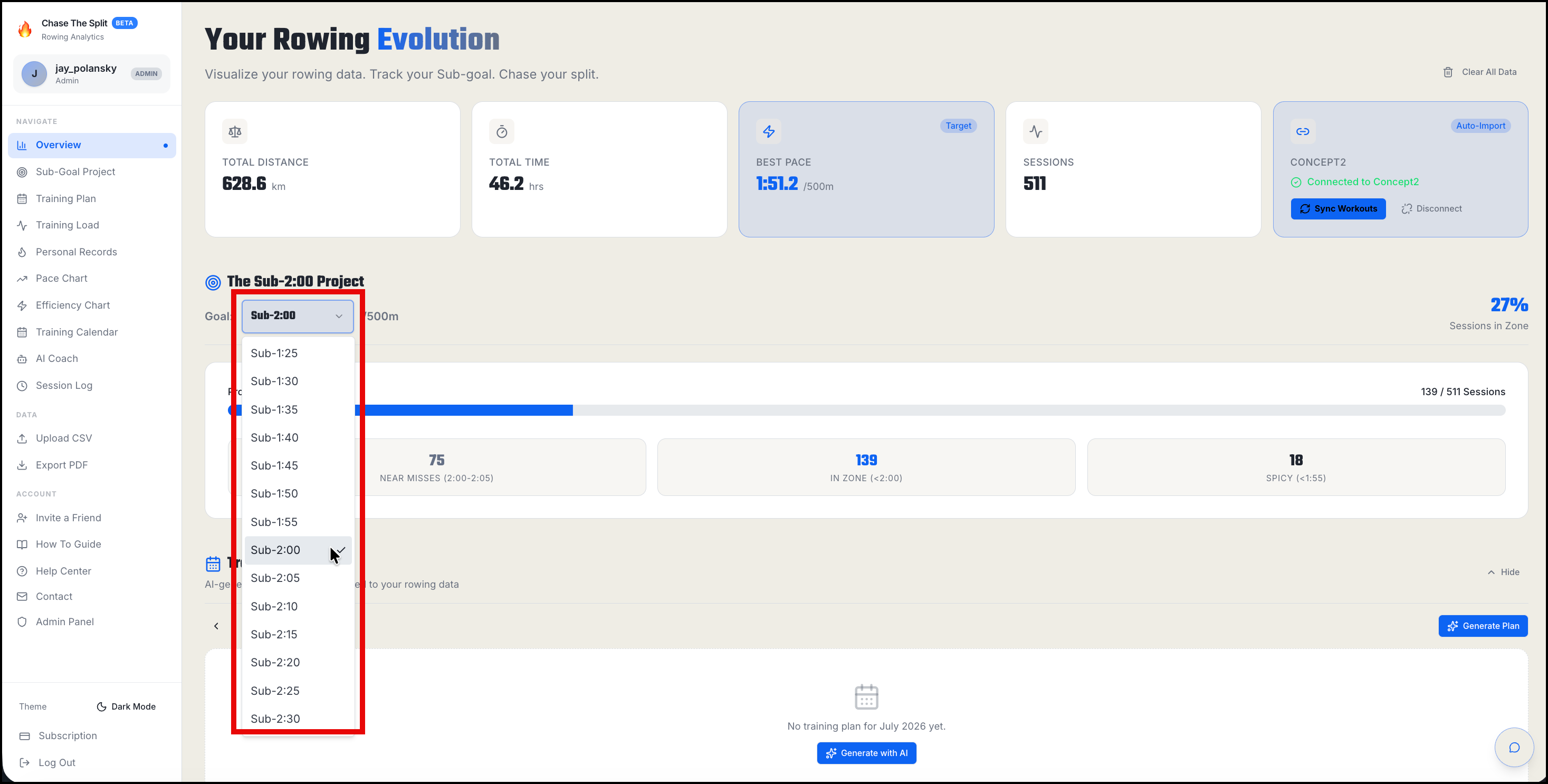
Changing your goal
Just pick a new pace from the dropdown. The change saves instantly to your account — no confirmation needed — and applies everywhere, on every device you log in from.
What changes when you update your goal
Every zone and chart on your dashboard re-shades immediately based on your new target:
- In Zone (green) — workouts at or faster than your goal pace
- Near Miss (yellow) — workouts within 5 seconds of your goal
- Building (orange) — workouts more than 5 seconds over your goal
The following datapoints are also displayed:
- The dashed goal line on your pace progression chart moves to the new pace, and the shaded goal zone follows it
- Your In Zone count and streaks recalculate against the new target
- Workout cards re-label — a session that was a "Near Miss" against 2:00 might show "In Zone" against 2:05
- Your AI coach tailors its advice to the new target pace
Choosing the right goal
A good pace goal is one you hit in roughly a third to half of your steady sessions. If everything shows green, it's time to move the goal down. If almost everything is orange, set a friendlier target and work your way back — the zones are most useful when they show a mix.