Import Concept2 Logbook by CSV
Follow the below steps to export any season from your Concept2 logbook as a CSV file and upload it directly to Chase The Split.
Step 1 — Visit the Concept2 website
Go to the Concept2 website (www.concept2.com). Select the "Logbook" tab on the top toolbar.

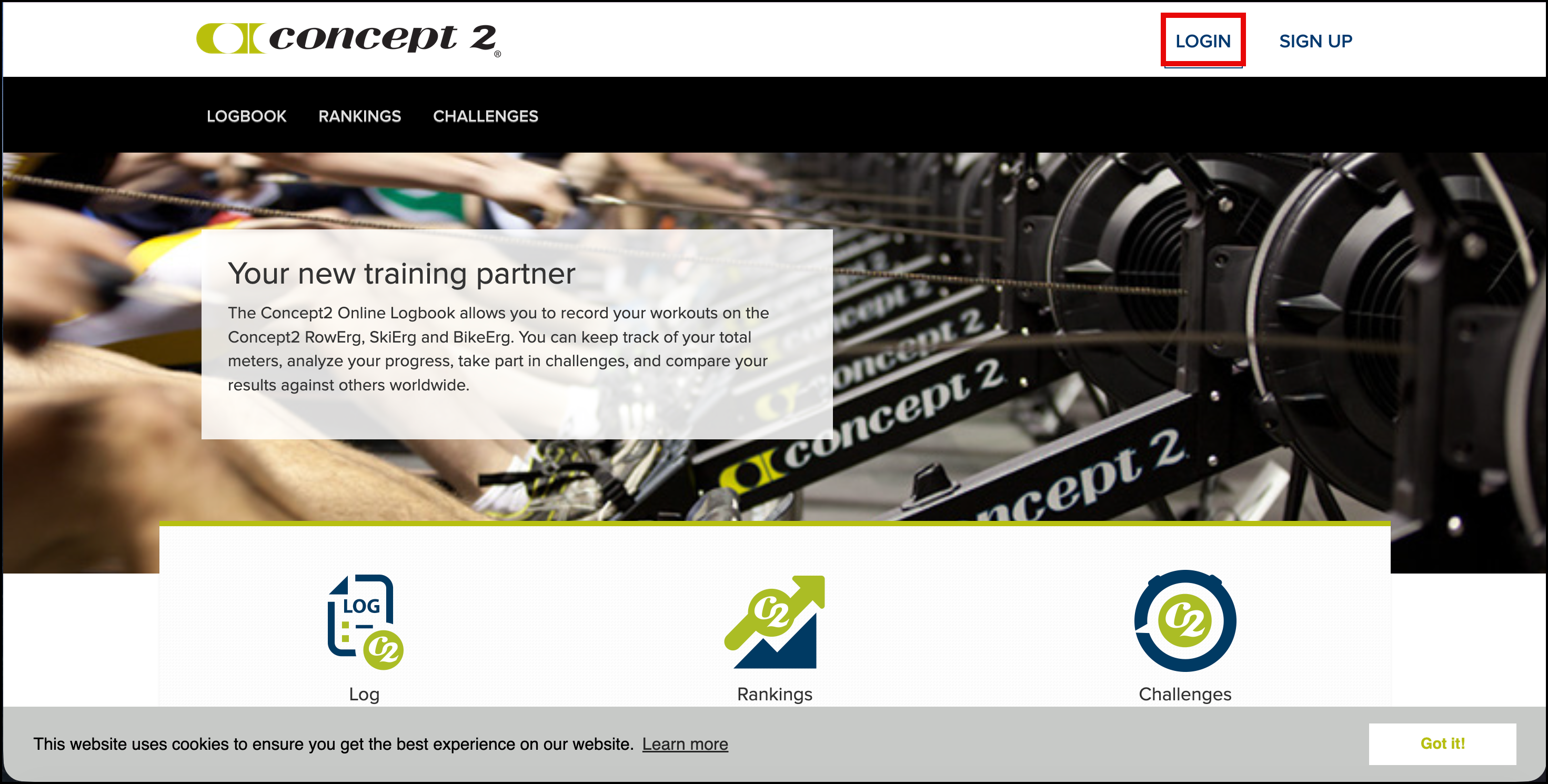
Step 2 — Find the login screen on the Concept2 website
Click the LOGIN button in the upper right.
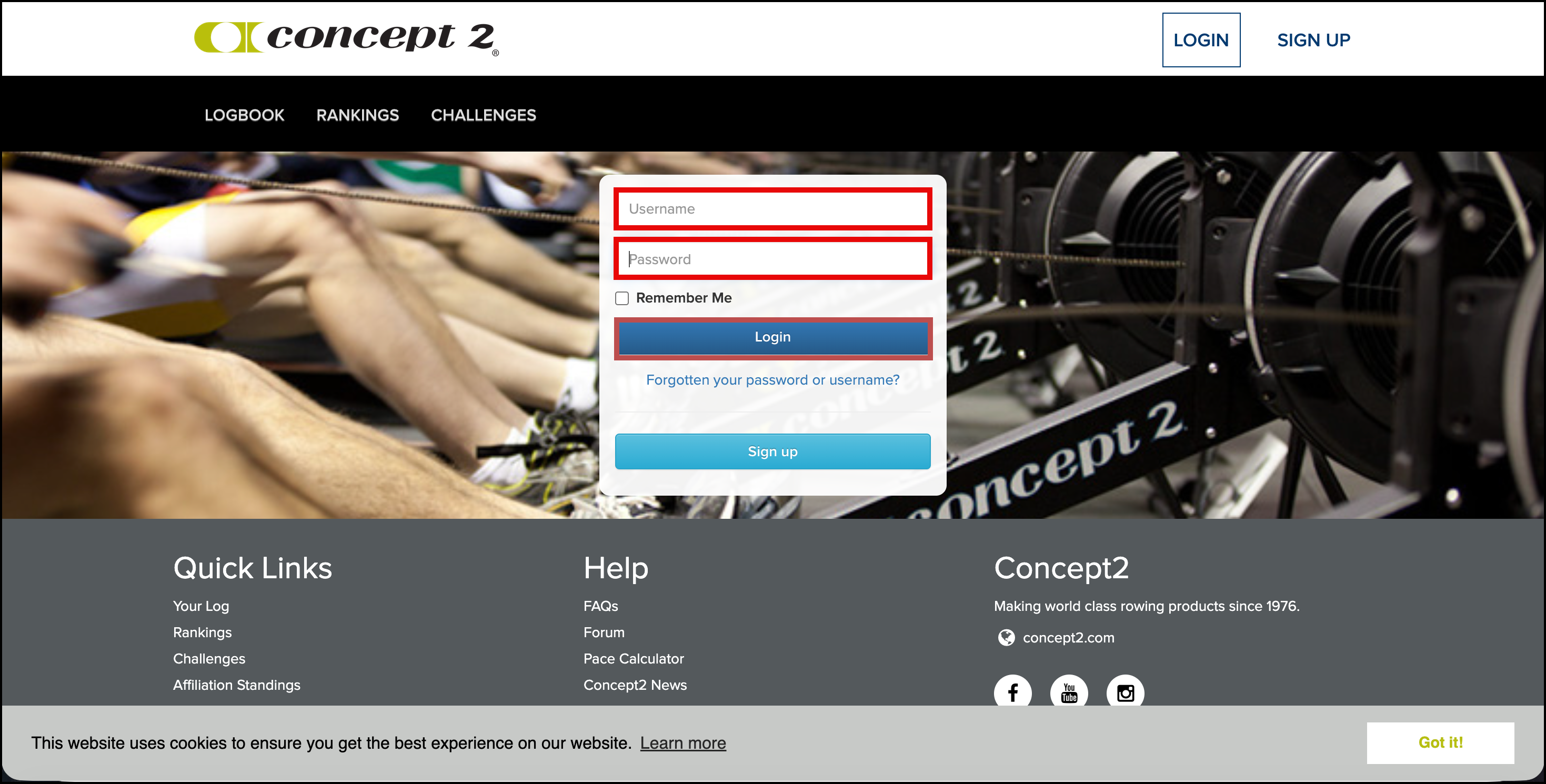
Step 3 — Log into the logbook
Enter your Concept2 username and password and then click the Login button.
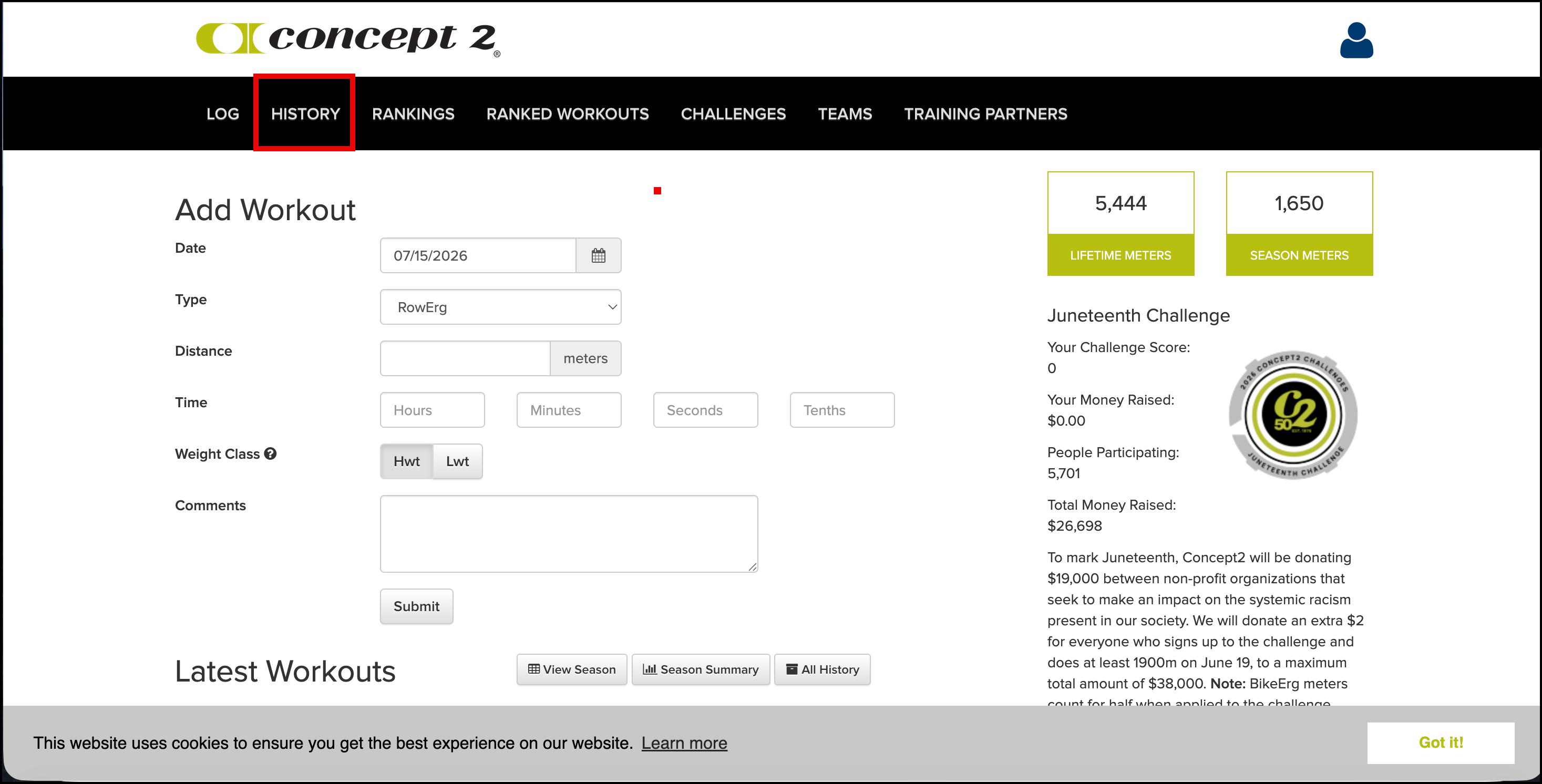
Step 4 — Navigate to the History tab
Select the "History" tab on the top toolbar.
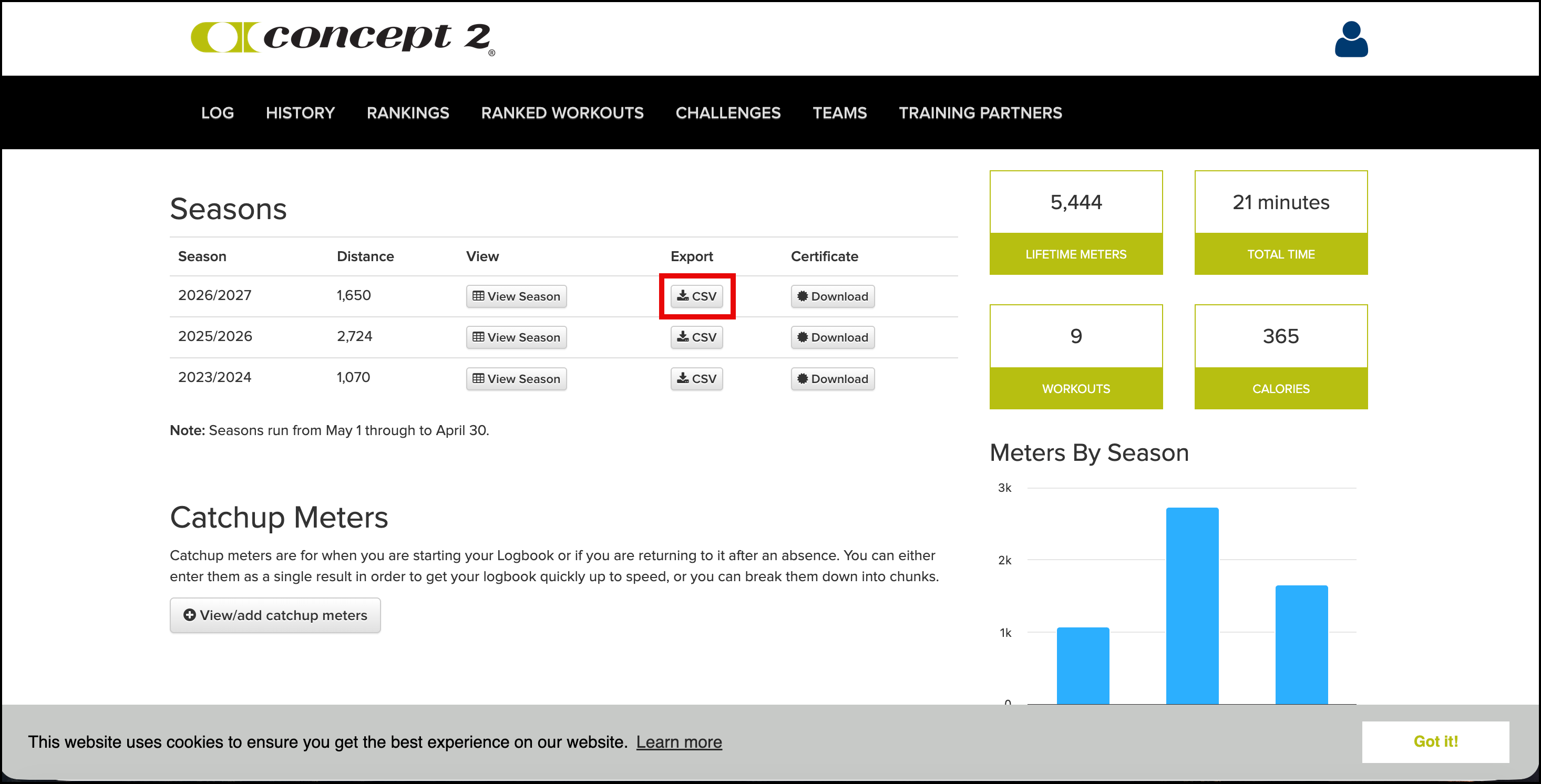
Step 5 — Export the CSV file
Click the CSV button next to a season.
Step 6 — Return to the Chase The Split dashboard
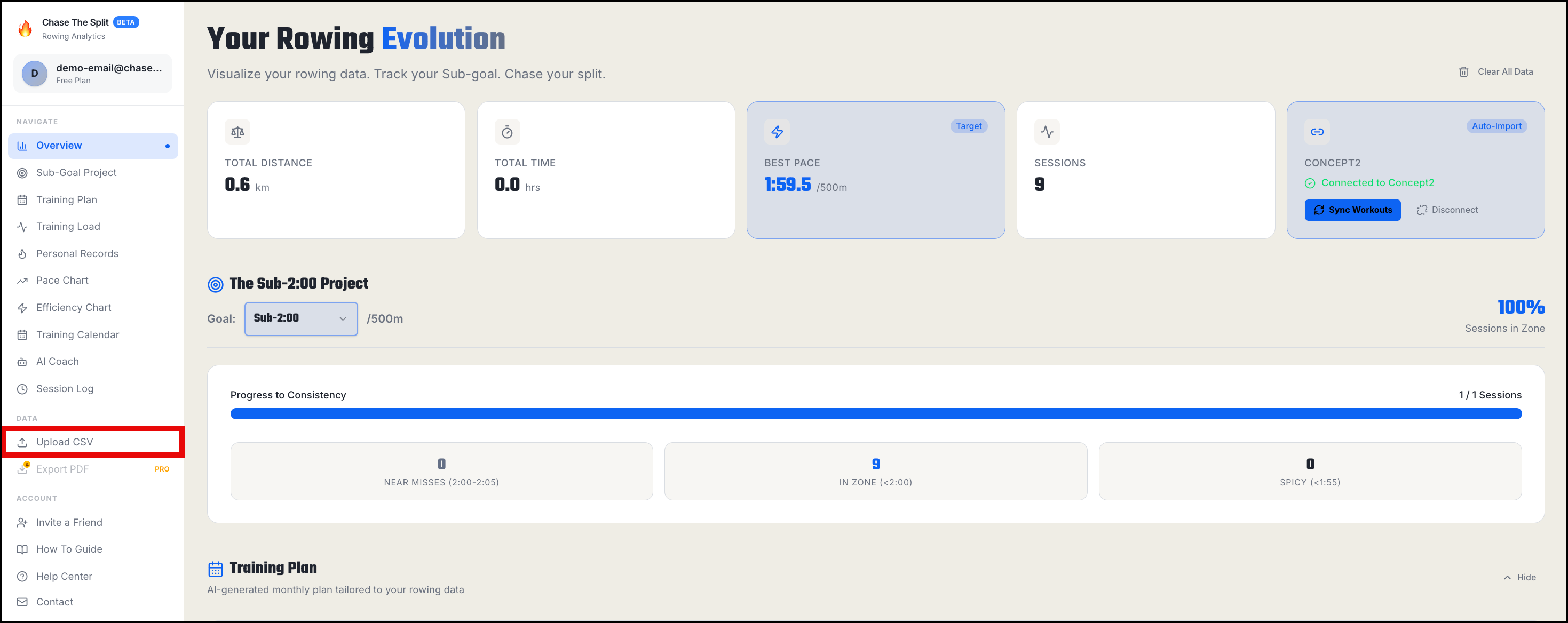
Navigate to the Chase The Split dashboard. Select "Upload CSV" on the left pane.
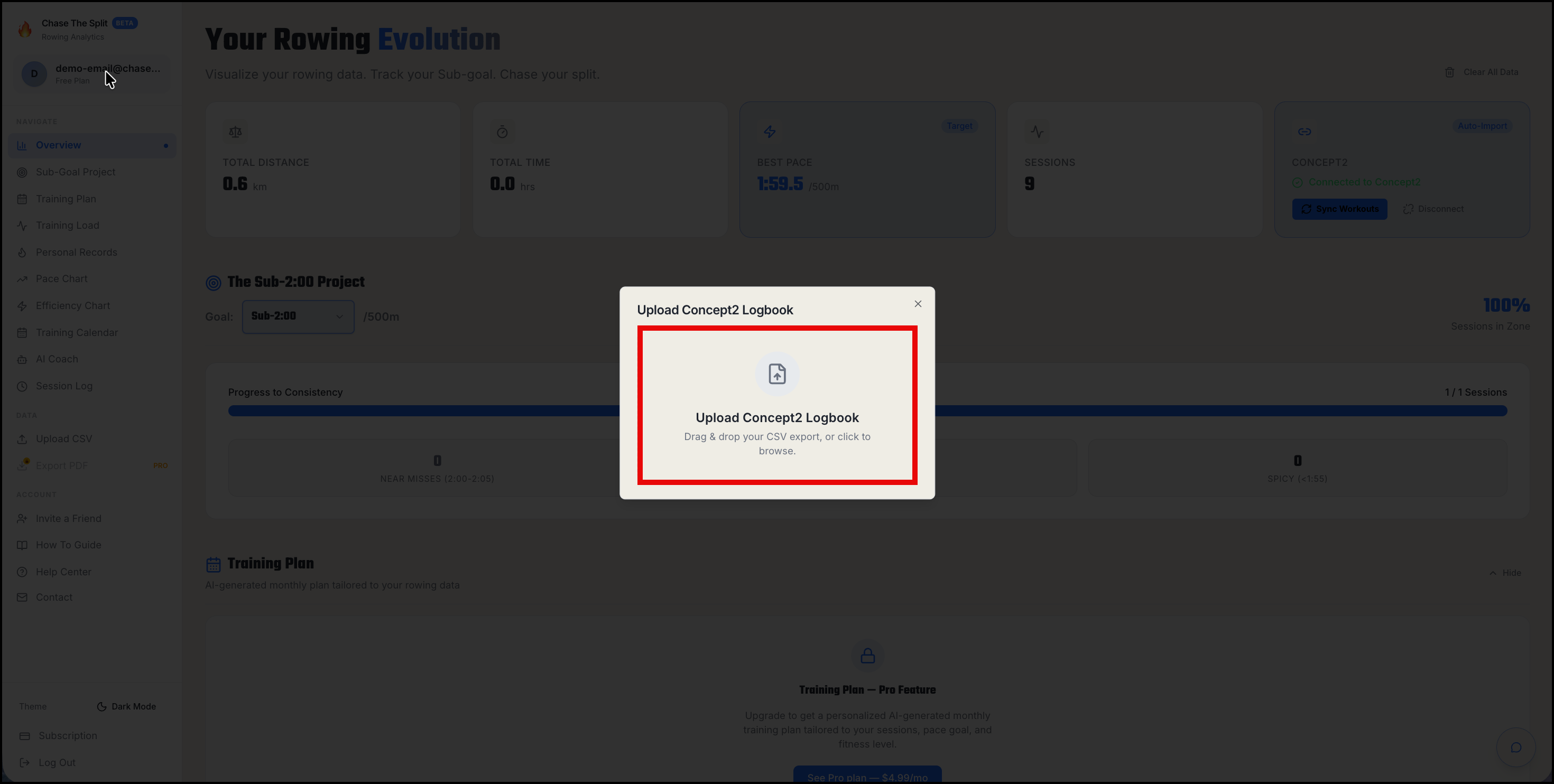
Step 7 — Upload the CSV file
Drag and drop your CSV (or click to browse) in the upload window.
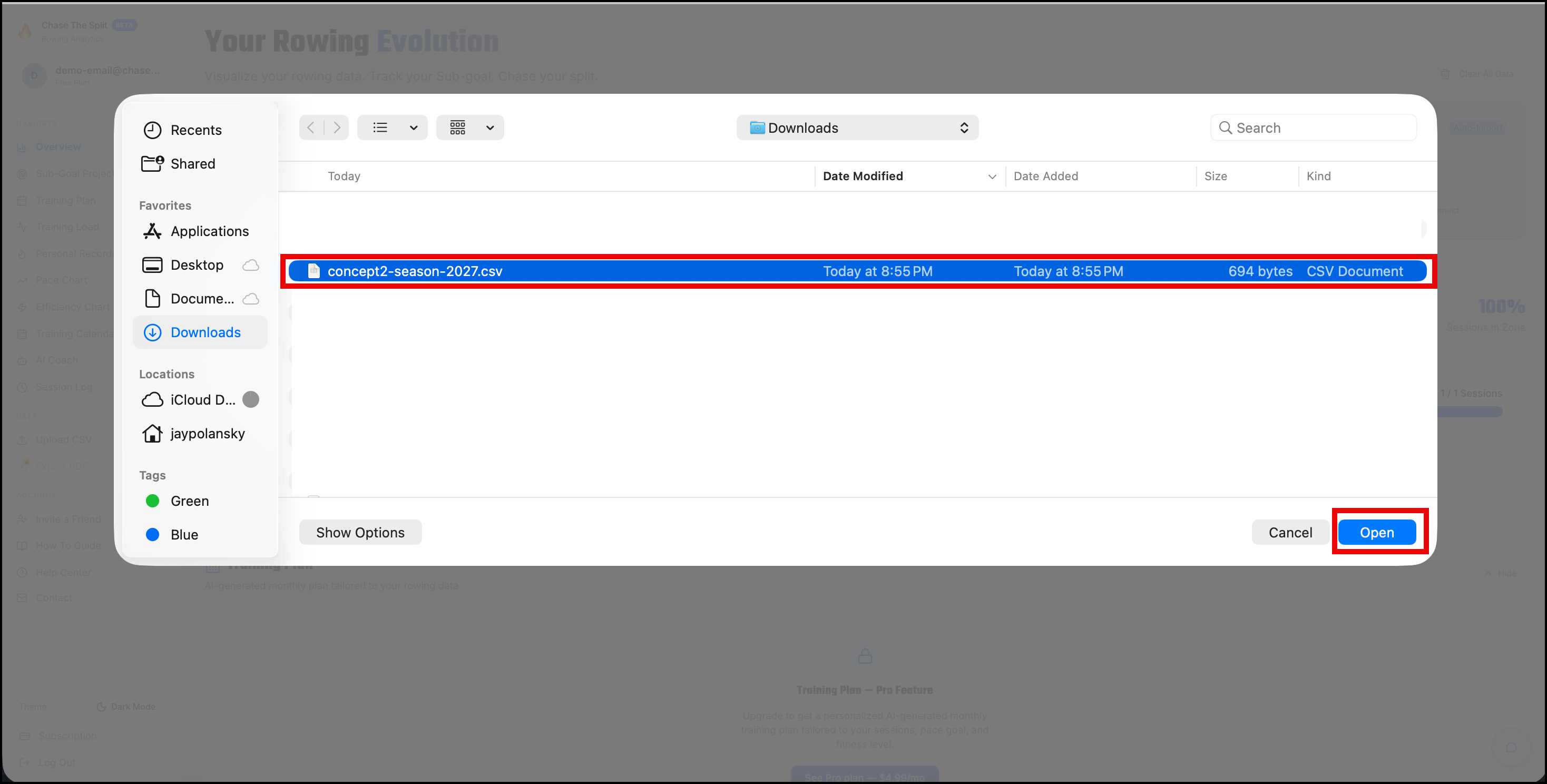
Step 8 - Select the CSV file
Select the file in the pop-up window and click the Open button.